Review and delete large attachments
Three ways to clear iPhone storage from messages you probably have not tried yet
From hidden message files to auto-delete settings, here’s how to free space fast
Last updated:
2 MIN READ
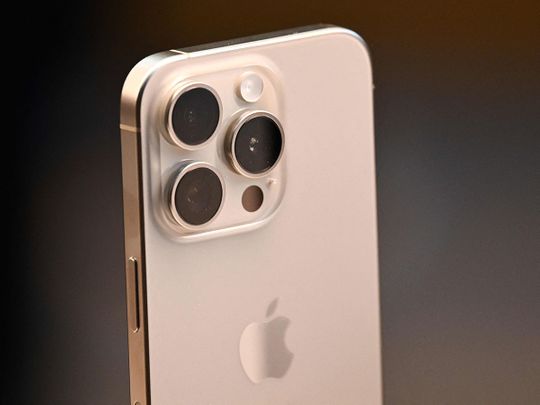
iPhone storage gets full pretty easily
Dubai: Your iPhone keeps telling you storage is almost full. You delete a few apps, maybe clear some photos, and somehow it fills back up again within weeks. The problem might not be what you think.
One of the biggest storage drains on an iPhone is sitting quietly inside your Messages app. Every photo, video, GIF and file anyone has ever sent you is saved automatically, whether you wanted it or not. Group chats, family threads, memes from months ago, all of it accumulates in the background without you ever noticing. Tom's guide has shared 3 hacks on how to deal with it.
1. Delete your large attachments in one go
Your iPhone has already done the hard work of finding the biggest offenders. Go to Settings, then General, then iPhone Storage. Scroll down to Recommendations and tap Review Large Attachments. You will see everything stored in your Messages app sorted by file size, photos, videos, GIFs and documents, all in one place. Swipe left to delete individual items or tap Edit in the top right corner to select and remove several at once. If you are in active group chats, check this list regularly because storage builds up faster than you would expect.
2. Clear out specific conversations
Clear photos from specific conversations
If you already know which chats are the messiest, you can go straight to the source. Open Messages, select the conversation and tap the contact or group name at the top of the screen. From there, select Photos to see every image exchanged in that thread, or Links to find files and other attachments. Tap Edit, choose what you want gone and delete. This works especially well for family group chats, work threads and any conversation where someone has a habit of forwarding videos.
3. Set messages to auto-delete
Auto-delete messages
The most low-effort fix is to stop the problem from building up again. Go to Settings, then Messages, then Keep Messages. You can set your phone to automatically delete messages after 30 days or one year rather than keeping them forever. When you first change this setting, your iPhone will ask if you want to delete everything older than your chosen timeframe straight away. If storage is your priority, say yes.
Get updated faster and for FREE: Download the Gulf News app now - simply click here.
Network Links
GN StoreAbout Gulf NewsTerms & ConditionsReach by GNSitemapContact usPrivacy PolicyGN FocusHave your sayWork with usAdvertise with usGulf News epaperPrinting Services
Download our app
© Al Nisr Publishing LLC 2026. All rights reserved.