Switching from Android to iPhone 18 Pro? How to transfer photos, chats and contacts
Step-by-step guide to move photos, chats and contacts from Android to iPhone 18 Pro
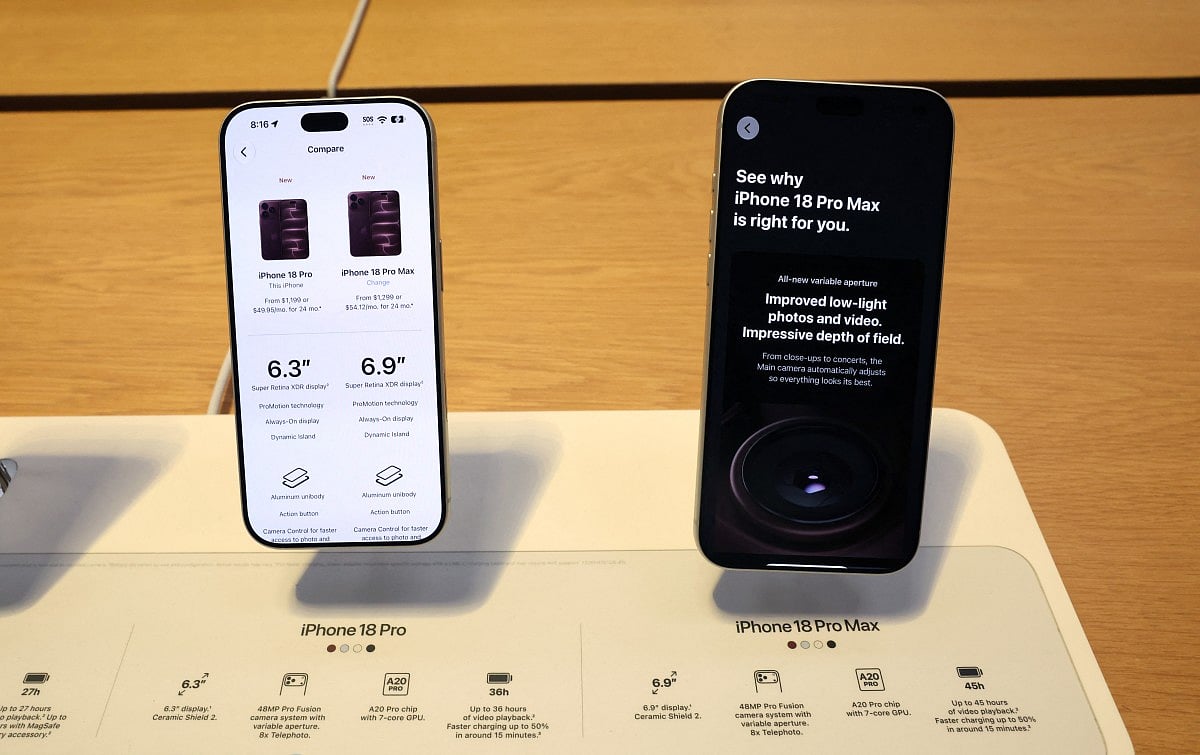
The iPhone 18 Pro went on sale on September 18, and it lands at the best moment in years to jump ship from Android.
Apple's new flagship pairs a 2nm A20 Pro chip with a 48MP main camera that has a true variable aperture, from f/1.48 for night shots to f/4 for sharp group photos.
The bigger change is how easy the move has become. Leaving Android for an iPhone used to mean a weekend of cables, cloud backups and lost chats. In 2026 it is mostly a 30-minute setup screen. Apple and Google now build the migration straight into their setup flows, and Pixel and Galaxy phones on Android 17 can hand over your data and eSIM without an app. Texts between the two platforms have been end-to-end encrypted since iOS 26.5 on supported carriers, and your WhatsApp history comes along for the ride.
Here's what to know before you make the switch, what to do before you hand over your old phone, and the things you'll want to sort out on day one.
Before you buy: Will the switch suit you?
Moving from Android to iPhone is easier than it used to be, but the two phones still do some things differently.
Your Google life can stay. You don't have to abandon Gmail, Google Photos, Google Maps, Chrome or Google Drive. You can download them on your iPhone and continue using your existing accounts.
Your apps are another story. Free apps that exist on both platforms can usually be downloaded again, but your Google Play purchases don't automatically become App Store purchases. Check the apps you rely on before you switch.
Your smartwatch could be the awkward part. If you're using a Galaxy Watch or another Wear OS watch, check compatibility before making the jump. Your Bluetooth earbuds, however, can generally still work as regular Bluetooth headphones.
And don't assume your old case will fit. If you're upgrading to a new iPhone model, you'll need a case designed for that model.
What to do the night before
Do not set up the iPhone yet. The transfer only runs from the setup screen. If you finish setup first, you must erase the iPhone and start over.
Update your Android phone and the Google Messages, Chrome and WhatsApp apps. Updated Chrome is needed to bring bookmarks across.
Check your Android version. Android 17 on a supported Pixel or Galaxy can transfer without any app. Everything else uses Apple's free Move to iOS app from Google Play.
Back up to Google as a safety net. Turn on Google Photos backup and confirm contacts and calendars sync to your Google account.
Move anything off the microSD card you want to keep, or confirm the transfer will include it. The total must fit on the iPhone.
Screenshot your home screen and app list. You will reinstall most apps from the App Store, and a list makes it quick.
Export two-factor codes. In Google Authenticator or your authenticator app, export accounts or sign in with cloud sync on. Losing these is the most painful mistake a switcher can make.
Note banking app re-registration. Many banks bind to one device; have your login details ready.
Find a USB-C to USB-C cable. A wired connection is faster than Wi-Fi for large photo libraries.
Charge both phones and keep them on power for the whole transfer.
The transfer, step by step
There are two roads, and the iPhone asks which one you want. Both start the same way, from Apple's official guide:
Turn on the iPhone 18 and set it next to your Android phone, both plugged in.
Follow setup. On the Quick Start screen, tap Set Up Without Another Apple Device. (Quick Start's tap-together trick is iPhone-to-iPhone only.)
On Transfer Your Apps & Data, tap From Android.
Road A: Android 17, no app needed
For supported phones on Android 17, starting with Pixel and Galaxy models. This path also moves your eSIM.
Tap Transfer without App, then Continue.
Scan the QR code on the iPhone with your Android camera.
On Android, choose what to send: photos, contacts, calendars, call history, messages and more.
When the data finishes, tap Continue on the iPhone.
To move your eSIM, pick your number on Android and tap Transfer.
Finish setup on the iPhone.
If the QR code will not scan, tap Other Options on the iPhone. On Android, go to Settings > Google Services > All Services > Pair with iPhone or iPad > Copy Data and type in the session ID and pairing code.
Road B: the Move to iOS app
For every other Android phone.
Tap Transfer with App. No app yet? Scan the iPhone's QR code to open it in Google Play.
Open Move to iOS, accept the terms and allow location and notification permissions.
On the iPhone, tap Continue and wait for a six- or ten-digit code. Ignore any weak-connection warning on Android.
Type the code on Android and join the temporary Wi-Fi network the iPhone creates. Using a USB-C cable instead? Adjust the USB prompt on Android.
Select what to move and tap Continue.
Hands off. Leave both phones alone until the iPhone's progress bar finishes, even if Android says it is done. A phone call or switching apps on Android breaks the transfer.
Tap Done on Android, then Continue on the iPhone. Activate your SIM or eSIM when prompted; your carrier may send you to its website.
Road C: WhatsApp, the special case
WhatsApp chats and media come across inside Move to iOS on a fresh iPhone that uses the same phone number. Tick WhatsApp in the list, then open WhatsApp on the iPhone and sign in to import. Call history does not transfer, and WhatsApp Business is not supported
If the transfer stalls
Most failures are a Wi-Fi hiccup or an interruption on the Android side. Apple's fixes, in order.
Keep Move to iOS on screen the whole time. No calls, no other apps.
Turn off Android's network-switching features, such as Smart Network Switch, then forget saved Wi-Fi networks.
Turn off mobile data on the Android phone.
Restart both phones and try again, or switch to a USB-C cable.
iPhone full or content missing? Erase the iPhone, trim what you send so it fits, and run the transfer again.
If Messages misbehaves afterwards, check that your number shows under Settings > Apps > Messages. For anything the transfer skipped, your Google account is the fallback: sign in on the iPhone and contacts, calendars, mail and photos reappear.
Depending on your devices and software, you can move things such as:
Contacts
Messages
Photos and videos
Calendars
Call history
Files
WhatsApp messages and media
Some free apps
For a large photo library, a USB-C cable can make the transfer easier than relying on a wireless connection.
And the golden rule: don't start playing with either phone halfway through the transfer. Leave them alone until the iPhone says it's finished.
What won't magically appear on your iPhone?
This is the part worth knowing before you start.
Your paid Android apps: You may have to buy them again from the App Store.
Some app data: Individual apps have their own rules for backups and transfers.
Your banking setup: Expect to sign in or verify the new device.
Your smartwatch: Compatibility depends on the watch.
Some passwords: If you've been using Google Password Manager, make sure you know how you'll access those passwords on your iPhone.
Your Android layout: Your apps, widgets and home-screen setup won't simply recreate themselves. Think of this as an opportunity to start fresh rather than trying to reproduce your old screen exactly.
The first things to change on your new iPhone
Once the transfer is done, don't spend the first day wondering where everything went. Set up the things you'll actually use.
Make Google feel like home
If you're a lifelong Gmail, Chrome or Google Maps user, download your familiar apps first. You don't have to suddenly become an Apple-only household.
Set up Face ID and Find My
Do this before you start carrying the phone around. Find My is particularly useful if you misplace your phone.
Get your notifications under control
Don't simply allow every app to send notifications because your iPhone asks. Take five minutes to decide which ones actually deserve your attention.
Set up Apple Pay
Add your cards once your banking apps are ready.
Learn the back gesture
This is one of the first things Android users notice: there isn't a universal back button. On many apps, swiping from the left edge of the screen takes you back.
Network Links
GN StoreDownload our app
© Al Nisr Publishing LLC 2026. All rights reserved.